Spell checking — catch typos while you write
Shipped
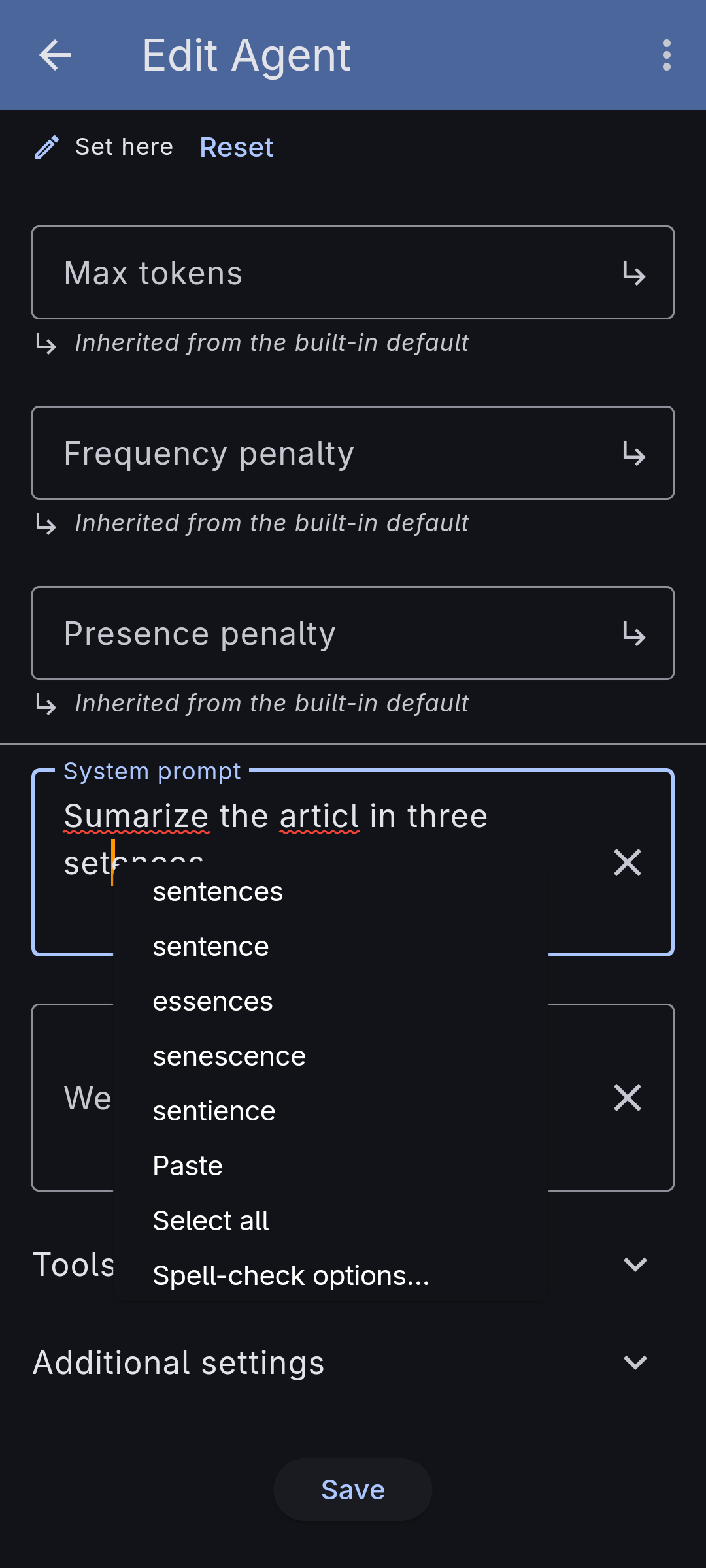
View as MarkdownEvery field where you write a prompt — the conversation composer, an agent's system and welcome messages, the auto-enrichment prompt — underlines misspelled words and offers replacements. It runs entirely on your device: nothing you type is sent anywhere for it. Spell checking is a local convenience, the same one your keyboard already gives you elsewhere.
Why it matters
You build an agent by writing to it — a system prompt is code you author in prose. A typo in an instruction is a bug, and the ones that slip through are the ones you stop seeing after the third read. A quiet red underline catches them while you write, so the prompt you save is the prompt you meant.
How it works
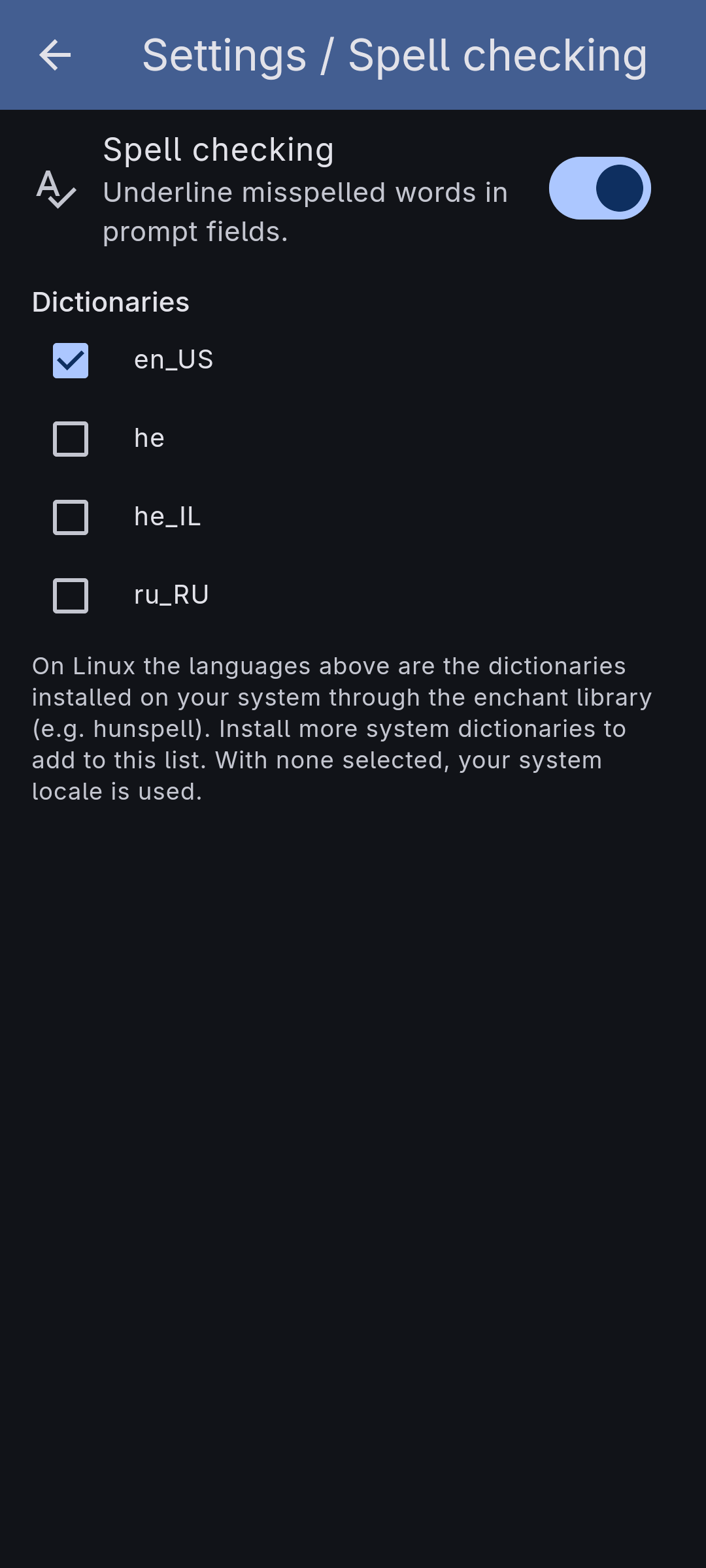
Turn it on under Settings → Spell checking, or from the "Spell-check options…" entry in any prompt field's context menu (right-click or long-press). The same controls appear in both places: a switch to enable it and, where the platform supports it, a list of dictionaries to check against.
Misspelled words get a red underline. Open the context menu on one and the top entries are replacements — pick one and it's swapped in. Spell checking runs entirely on your device against dictionaries already installed there; nothing you type is sent anywhere for it.
Where the dictionaries come from depends on the platform:
- On Android the app uses the system spell checker — the same one your keyboard uses. The language follows your keyboard settings, so there's no separate dictionary list to manage.
- On a desktop (Linux) build the app checks against the spell-check dictionaries installed on your system. The options screen lists exactly the ones it finds, and you tick the languages you want; you can select several at once and a word only counts as misspelled when none of them accept it. With no language ticked, your system locale is used.
Getting it working on Linux
The app uses enchant — the standard
Linux spell-check library — which it loads at runtime (libenchant-2). enchant
doesn't hold any words itself; it hands the checking to a backend
(hunspell is the usual one) and reads that backend's per-language
dictionaries. So a working setup is three things: the enchant library, a
backend, and at least one dictionary. Install them from your distribution:
# Debian / Ubuntu
sudo apt install libenchant-2-2 hunspell-en-us
#   more languages: hunspell-de-de, hunspell-fr, hunspell-es, …

# Fedora
sudo dnf install enchant2 hunspell-en

# Arch
sudo pacman -S enchant hunspell hunspell-en_us
Each extra hunspell-<language> package you install adds that language to the
dictionary list in Settings → Spell checking the next time you launch the
app. If enchant isn't installed at all, spell checking simply stays off — nothing
breaks.
Bring-your-own extends here too: just as you bring your own model and your own tools, on desktop you bring your own dictionaries.
What it doesn't do yet
- No bundled dictionaries. The app checks against dictionaries your system already has; it doesn't ship or download any. On a desktop build with none installed, spell checking simply stays off until you add one.
- No custom word list. You can't yet teach it a project-specific word (a product name, an acronym) to stop flagging — it checks against the installed dictionaries as they are.
- Android follows the keyboard. On Android the checking language tracks your keyboard, so there's no in-app language picker there.