Sync — your data across your devices
Shipped
View as MarkdownSync is off until you turn it on. When you do, Bring Your LM replicates your data to a Couchbase Edge Server that you run — there's no BYLM account and no backend we operate. Your agents, conversations, notes, and settings then follow you from one device to another, and each device keeps working offline and catches up when it reconnects.
Why it matters
You bring the model and the keys, so the app's job is to hold your setup and history without shipping it anywhere you didn't choose. Sync keeps that promise: you point the app at a server on your own machine or network, replication runs both ways continuously, and the things that only make sense on one device — or that must never leave it — are deliberately held back.
The one hard rule: Couchbase Lite 3.x
Bring Your LM stores everything in Couchbase Lite 3.x and replicates with that version's protocol. The server you run has to speak the same protocol, and this is the part that trips people up:
- Couchbase Edge Server is currently a 1.x product built for the Couchbase Lite 3.x line. There is no Edge Server release that targets the newer Couchbase Lite 4.x. So even though 4.x is the current Couchbase Lite version, BYLM stays on 3.x on purpose — moving the app's engine to 4.x would leave it with no server to sync against.
- Pin your server to a build that speaks the 3.x protocol. The reference
deployment in this project pins the
couchbase-edge-server1.x image for exactly this reason. If a future Edge Server adds 4.x support, the app has to move first — don't get ahead of it on the server side.
If sync connects but immediately errors with a protocol or version complaint, this mismatch is the first thing to check.
What syncs, and what stays on the device
Everything replicates through a single set of collections. When sync is on, the app pushes and pulls all of these:
- Your agents, and the providers they run on — but a provider's API key is not in the synced record (see the next section).
- Your conversations and every message in them, including image attachments.
- Your tools and your notes / memories.
- Workspaces, and app settings — including the sync connection itself.
- The background job queue, so a queued turn can be seen (and picked up) across devices.
- The device registry, so every device can put a name to the device ids stamped on jobs and messages.
- Embedded-model catalogue entries — the content-identified record that a given local model exists — so an assembled model shows up on your other devices (the actual GGUF file does not travel; see below).
- Key offers and pending mid-turn input requests, so those round-trips survive an app restart or a hand-off to another device.
Some things are created on every device but never handed to the replicator, because they're meaningless — or unsafe — anywhere but where they were written:
- Where your GGUF model files sit on this device. The embedded engine keeps a local cache mapping each model to its path on this machine. A path on one device says nothing on another, so it stays put. (It's rebuilt by re-scanning your models folder, so losing it costs nothing.)
- The embedded engine's per-device runtime settings — the compute backend you pinned (CPU / Vulkan / …) and the decode-thread count. A GPU one machine has is not the GPU another has, so these are held local.
- The security records behind key sharing — the trust pins for other devices' sharing keys, and the record of key offers you've already handled. These are local by design, not just convenience: if they synced, the same attacker who could tamper with the channel could rewrite the very records that guard it.
Secrets never ride the sync connection
Your provider and fetch-tool API keys live in your device's OS keystore, not in the app's database — so they are simply not among the things that replicate. A synced provider record carries its address and options and only a flag saying a key is set; the key's value stays on the device you typed it into. By default, then, turning on sync shares no secrets at all, and you re-enter a key once on each device.
Sharing a key on purpose
When you do want a key on another device without retyping it, BYLM has a deliberate, per-key path — not a blanket "sync my secrets" switch:
- You pick a specific key (a provider's, or a fetch tool's) and a specific target device to send it to.
- The key is sealed to that device's public key before it leaves — encrypted so only that one device can open it — and then carried inside the synced key-offers collection. Because it's ciphertext sealed to one recipient, the server relays it without ever being able to read it.
- The target device has to be verified first (you confirm its fingerprint), which is what stops a key being sent to an impostor.
- On the other device you accept the offer; the key is unsealed straight into that device's keystore, and the offer is retired.
So secrets are private by default and shared only key-by-key, device-by-device, end-to-end encrypted — never dropped into the general sync stream in the clear.
Asking for a key you don't have
Sharing starts on the device that has the key, which is the wrong end when you are sitting in front of the device that needs one. So you can also ask:
- Where a key is missing, the reminder under the API Key field offers Ask my other devices for this key. The same action is on the provider's and the tool's edit menu, beside "Share API key".
- The ask names no device — nothing in BYLM publishes which of your devices holds which key, and you may not remember either. It goes to all of them, and each one shows it only if it actually has that key stored. A device that cannot help never mentions it.
- On a device that can, the ask appears under Settings → Devices with approve or decline. Approving simply shares the key the normal way — fingerprint check included if that device isn't verified yet — so an ask can never move a key anywhere sharing couldn't.
- The ask carries nothing secret: it names a key, not a value. What comes back is an ordinary sealed offer, and it turns up right under the API Key field you asked from: accept it there and the key drops straight into the field, ready to save. It also waits under Settings → Devices with everything else, and accepting it either way clears the ask from your other devices — along with any second copy another of them sent for the same key.
- Declining hides the ask on that device only, leaving your other devices free to answer it. You can withdraw an ask you raised from Settings → Devices, and one nobody answers expires by itself.
Because nothing replicates while an app is closed, this is a "go and open the other device" flow: your ask reaches a device the next time you open BYLM there, and the badge on Settings points you at it.
Managing your devices
Settings → Devices lists every device in your registry — the names that show up in a message's per-device metrics. From here you can rename a device, delete a stale record for one you no longer use, and see each device's trust badge and key fingerprint. Verifying a device means comparing that fingerprint across the two screens; if a device's keys later change, it turns into a loud "Keys changed" badge rather than staying invisible, and a device that changes its name has to be re-verified before it can send or receive keys. Incoming key offers also land here, each with an explicit accept (which verifies the sender first) or decline — as do asks from your other devices for keys this one holds, and the keys this device is still waiting for. A badge points you to whatever is waiting, so nothing sits unnoticed.
Reading the sync status icon
Whenever sync is on, a small status icon rides in the top bar (and in the navigation drawer) so you always have an at-a-glance read on the connection. Tap it to jump straight to the sync settings. When sync is off, the icon isn't shown at all.
Here is every state it can show:
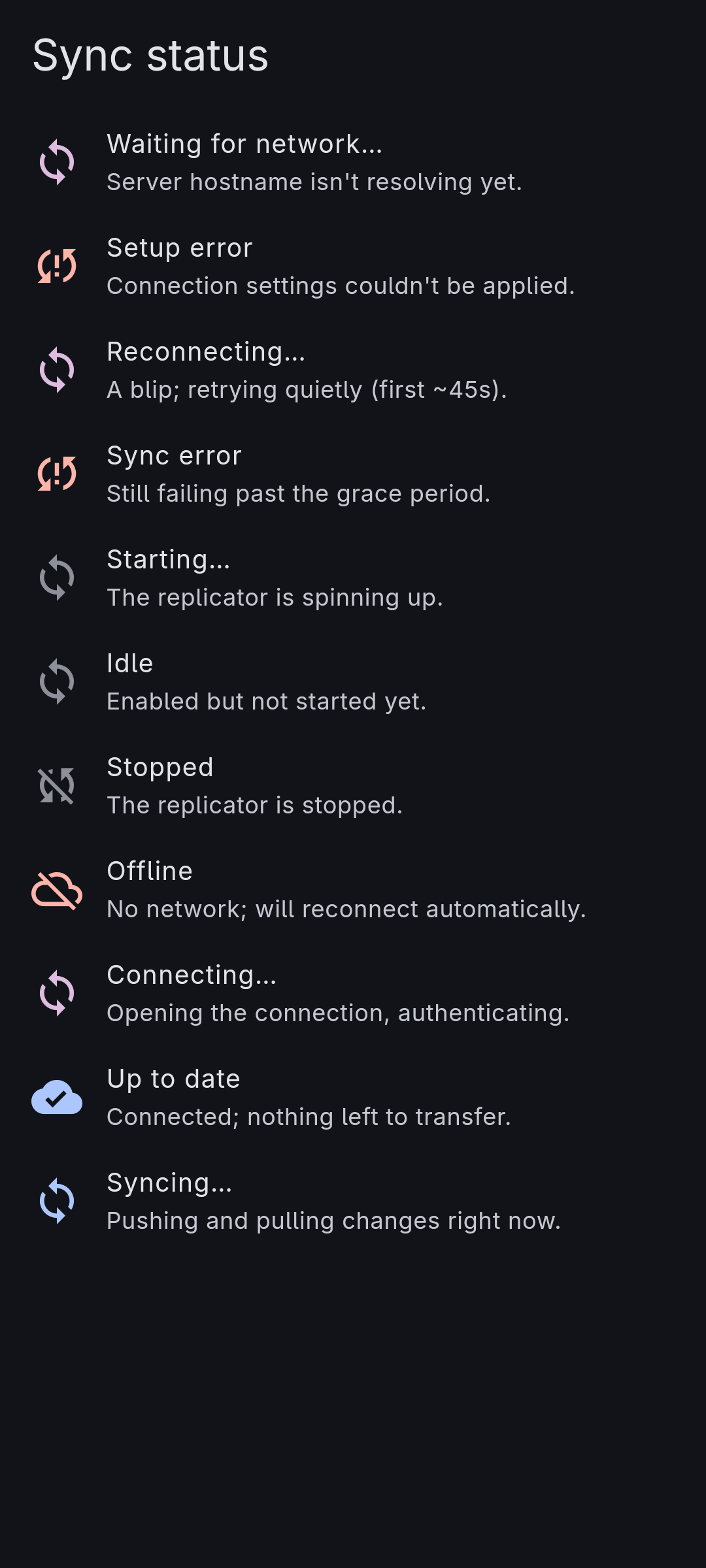
- Up to date and Syncing… are the healthy pair, in your theme's primary colour: Up to date (a ticked cloud) means connected with nothing left to move; Syncing… (spinning arrows) means changes are flowing right now.
- Connecting…, Waiting for network…, and Reconnecting… are the calm in-between states, in your theme's accent colour. Waiting for network shows while the server's hostname isn't resolving yet; Reconnecting is a brief blip the app retries quietly — it deliberately waits about 45 seconds before it will show a blip as a real error, so a dropped wifi link or a server restart doesn't flash red.
- Starting…, Idle, and Stopped are muted, low-key states: the replicator is coming up, enabled-but-not-yet-running, or stopped.
- Offline, Setup error, and Sync error are the ones that want attention, in an error colour. Offline means no network (it will reconnect on its own); Setup error means the connection settings couldn't be applied — a malformed URL is the usual cause; Sync error means the connection has kept failing past the grace window. For these, open the sync settings, fix what's wrong, and use Retry now rather than waiting out the automatic backoff.
Turning sync on in the app
Open Settings, then Sync, and fill in the connection:
- Enable sync — the master switch. Off by default; nothing connects until you turn it on.
- Endpoint URL —
ws://orwss://, then the host and port, then a slash and the database name configured on the server. For examplews://192.168.1.10:59840/byllm, orwss://cbe.example.com/byllmbehind a TLS proxy. Always include the port — leaving it off falls back to 80/443, not the server's listener. Couchbase Edge Server's default port is59840. The path is the database name, not a collection. - Anonymous access — leave off to sign in with a username and password; turn on only if your server is configured to allow anonymous clients.
- Username and Password — shown when anonymous access is off.
- Apply changes saves the form and restarts the replicator. Below it, a Status line shows the live activity, a running count of documents moved this session, and any error in full; Retry now restarts immediately.
Use wss:// (TLS) for anything beyond your own trusted LAN — the endpoint
carries all your synced data.
Standing up the server
You supply the server; the app is only the client. For a copy-and-run example —
a Dockerfile, a docker run command, and the config and users files — see
Running a Couchbase Edge Server. The essentials
are the same however you run it:
- Run Couchbase Edge Server as a container, listening on
59840. The reference deployment builds the officialcouchbase-edge-server1.x package into a small image and exposes that port. Persist the server's data directory on a volume so it survives restarts. - Define one database in the server config — call it
byllmto match the reference — withcreateon, client writes on, and client sync set tobidirectional. - List the collections to serve, explicitly, each under the default scope:
_default.memories,_default.tools,_default.api_providers,_default.bots,_default.conversations,_default.conversation_messages,_default.image_blobs,_default.image_blob_chunks,_default.settings,_default.workspaces,_default.jobs,_default.devices,_default.key_offers,_default.embedded_model_bundles, and_default.elicitations. This list must cover every collection the app replicates — a collection the app pushes but the server doesn't serve will 404. (Don't add the server's own_default._default; the app deliberately doesn't sync it.) - Set up access. Either define users with
bcrypt-hashed passwords and thereplicaterole in the server's users file — then fill the matching username and password into the app — or turn on anonymous users for an open server and switch Anonymous access on in the app. Prefer real users for anything reachable off your own machine. - Front it with TLS for remote access — a reverse proxy (the reference setup
uses Traefik) terminates HTTPS on a hostname and forwards to
59840, so the app connects withwss://<host>/byllm.
If you manage servers with Ansible, this project's companion role automates all of the above: you provide the admin user's password (from a vault), the public hostname the proxy answers on, and the database-to-collections map shown above, and it renders the config and users files and runs the container for you.
Whenever you add a new collection to the app in a future version, remember the server's collection list has to grow to match, or that new data won't sync.
What it doesn't do yet
Sync is a single endpoint with a single user — there's no per-collection or per-device filtering, no channels, and no selective sync: enable it and the full collection set above replicates. And it only talks to a Couchbase Edge Server (or a compatible Sync Gateway) speaking the Couchbase Lite 3.x protocol — see the version rule above.