Tools — giving an agent more than the model knows
Shipped
View as MarkdownA model on its own answers from what it was trained on. Tools are functions the agent can call in the middle of a turn — to check the clock, ask you a question, save a note, or fetch something over the web — and then keep going with the result. You attach tools to an agent when you build it; the model decides when to call them.
Why it matters
Tools are the line between a chatbot and an agent. They are how an agent reaches past the model's training data to today's information, to your own saved context, and to any HTTP API you can describe. Most of that power lives in one configurable tool — fetch_url — so it's worth knowing what each kind does.
The kinds
- Current date & time — a single built-in tool with no setup. It hands the model the current timestamp, which models otherwise can't know.
- Ask — the agent asks you something mid-turn and waits: free text, a choice from a list, or a yes/no confirmation. Useful when a task needs a decision only you can make. No configuration.
- Memory — the agent saves and recalls notes in a namespace you name, so context can survive across conversations. You set the namespace and, optionally, the list of keys it may use; when you attach it to an agent you can also gate whether that agent may write or delete, so one agent gets read-only access to a store another agent fills.
- Fetch a URL — the configurable workhorse. You define an HTTP request: a URL
written as a template with typed variables the model fills in (each with a type,
an optional default, and required/array flags), the method, headers, a request
body, an optional stored API-key secret, retry behaviour for rate-limited
responses, error handling that flags failed responses (and can render a custom
message from the error body instead of handing back a raw error page), and
output filters that shape the response before the model sees it — with a
template, with a jq program, or with a model of your choosing — and a cost
expression that reads what the endpoint charged so a paid API's fee joins your
conversation totals. You can also pin the response's
content-type — say JSON or Markdown, or any type you name.
The tool derives an
Acceptheader from those types and treats a reply that arrives as anything else as an error, so a misconfigured endpoint's HTML error page never reaches the model as if it were the data you asked for. The headers list shows every header the request adds for you — that derivedAccept, theContent-Typefor your body, and the defaultUser-Agent— each with its exact value and an Override button, so you can send your own value or clear it to suppress the header. One fetch tool is one endpoint; add as many as you need. This is also how an agent searches the web — point a fetch tool at a search API's endpoint (there is no separate search tool). - Call another agent — hand a message to one of a fixed set of other agents in the workspace and get its reply back, without leaving your conversation. You choose exactly which agents it may reach when you attach it — it can call those and no others — so delegating a sub-task to a specialist agent stays inside the boundary you set. An empty list calls no one.
- Manage tools — self-configuration. Meta-tools that let the agent itself list, inspect, test, save, and delete tools, and ask you to fill a secret when one is needed — or, when another tool already holds the right key, to reuse that one instead of asking you to paste it again. This is what makes an agent that builds and fixes its own fetch tools possible; a deletion always asks you first, and so does every secret.
- Manage agents — an agent can list, inspect, create, edit, and retire the other agents in its workspace, and even test one and answer the questions it asks — so an agent that sets up other agents can build and try them out.
- Discover providers — read-only tools that let an agent list your configured providers and browse each one's models, so an agent building other agents can choose a valid provider and model instead of guessing (your API keys stay hidden).
How it works
Open an agent and attach the tools it should have. The ones that need setup — a memory namespace, a fetch request — you fill in on a form; the rest just work once attached. Some tools take per-agent options right where you attach them (the memory write/delete gates, an agent-call tool's allowlist). When the model calls a tool during a conversation, the call and its result become part of the turn, and the agent continues with what it learned.
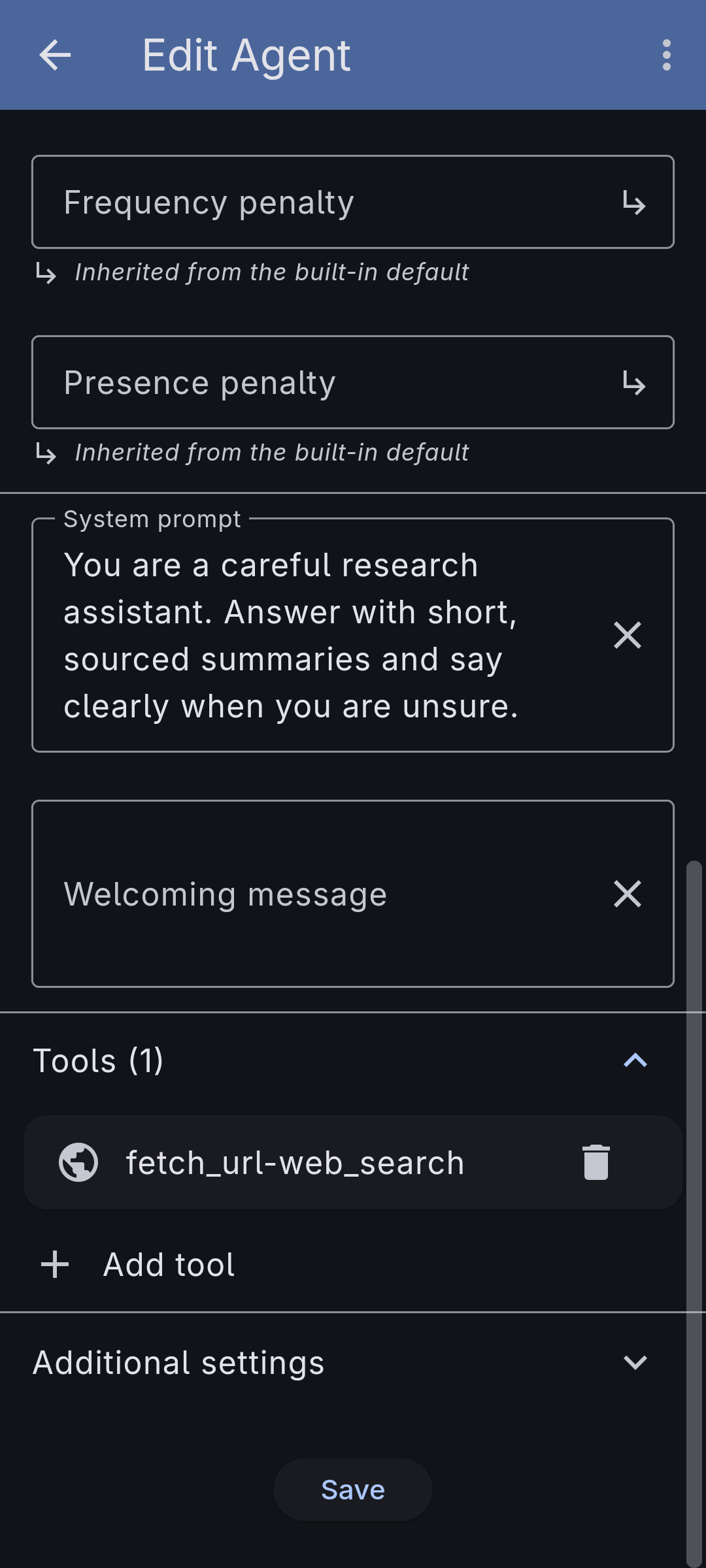
Every configured tool can carry an icon — one of a curated set of glyphs, an emoji, or a link to artwork on the web — which it then wears everywhere it appears: in the tools list, in the picker when you attach it to an agent, and on its call in the middle of a conversation. That last one is the point: a turn that calls four tools reads at a glance instead of by name. A tool with no icon of its own wears its kind's, so fetch tools, memory tools and the rest are still distinguishable without setting anything.
For a fetch tool, the icon you probably want is the endpoint's own logo, and Find automatically goes and gets it: it reads the icon the site publishes for itself, and if the API host publishes none it looks at the domain that host belongs to and tells you where it found one. You can also paste an address yourself, with a second one for dark mode if the mark needs it — glyphs and emoji don't, since one is tinted to the theme and the other sits on a plate. Whichever way it arrives, the address is checked before it is kept, so an icon that doesn't load is refused there and then rather than becoming a gap in a list. Only the address travels between your devices; each one fetches the artwork itself, and that only ever happens for a tool you gave a link to.
An agent with the Manage tools meta-tools can set a tool's icon too — pick a glyph, an emoji or a link, or ask it to find the endpoint's own mark — under the same rules: nothing is stored unchecked, and changing a global tool's icon asks you first.
Tools are scoped to workspaces: a tool can be global (available everywhere) or private to one workspace, and an agent only ever runs the tools in its own workspace plus the global set. The tools that ship with the app are listed as Built-in rather than global — they are everywhere for the same reason a menu item is, and there is no scope on them to change. You can test any configured tool in isolation from its detail page — it runs with arguments you provide and shows the raw result — so a misbehaving tool doesn't need a full conversation to debug.
Copy a tool you already have
A second endpoint on the same service usually differs from the first in a line or
two — another path, one more header. Copy on the tool's page opens the create
form on a duplicate of it: same URL, method, body, headers, variables and
response handling, with the name suffixed _copy. A tool name can only hold
letters, digits, _ and -, so the suffix is one the form accepts as it stands —
but it is a placeholder rather than a suggestion, and the point of the copy is
usually a name that says what the second endpoint is for. Nothing is written until
you save.
The API key is never copied unless you say so. When the tool has a key on this device, Copy asks first: Copy with key opens the form on the same key, Copy without key leaves the field empty for you to fill in, and dismissing the question copies nothing at all. Answering "without key" means the key isn't even read out of the keystore. Saving then stores whatever the field holds under the copy's own name, so clearing it first gives you a keyless duplicate — and keeping it puts a second copy of that secret on the device, under a tool you should be as careful with as the original.
Shaping a response before the model reads it
A fetch endpoint's output filters run in order over the response body, each one's output feeding the next, and only the last one's output reaches the model. There are two kinds:
- Template — a Mustache template rendered over the JSON the endpoint returned, so a payload full of fields the model would have to parse becomes the one sentence, table, or reshaped object you wanted. It costs nothing and adds no delay.
- jq — a jq program run over the response, for the work a template cannot do: filtering an array, computing a total, picking the three fields out of forty that the model actually needs. Exact, instant, and free. A jq program is a stream, so you also choose what happens when it produces more than one value — take the first, collect them into an array, or put each on its own line — and a program that selects nothing can be treated as an error, which is how you catch a response whose shape has quietly changed. Programs run with no file, network, or environment access: they see the response — body and headers — the arguments the agent called the tool with, and nothing else.
- Model — asks a model one question about the response and passes its answer on instead: summarise the page, pull out the single fact, rewrite a payload the endpoint won't rewrite for you. It is one question with no tools, so it cannot wander off doing its own research the way an agent with a fetch tool would.
Filters compose, and the useful pairing is jq before Template: select the data exactly, then render prose around it.
Order matters, because Template and jq both read JSON. Put either one after a Model filter that answers in prose and the call fails — so the form warns you while you are building the chain, naming the stage that cannot feed the next one, and a failure at call time says which stage produced the text rather than only which stage choked on it. The warning does not stop you saving: a Model filter that reliably answers with JSON is a chain that works, and only you know that.
The dependable way to put a Model filter in front of a jq or Template stage is to give it an answer schema — a JSON Schema the provider holds the model's reply to, so the answer arrives as data rather than as a sentence wrapped around a code fence. Leave it empty to ask for prose. If your provider cannot constrain a reply, the call fails saying so instead of quietly asking without the schema.
Some of what an endpoint says is not in the body at all. Whether there is a next
page of results is the Link header; what is left of your rate limit, when the
data was last modified. All three filters can read them, each in its own
spelling: a jq program indexes $headers["link"] by lower-cased name, a Model
filter's prompts quote {{headers.link}}, and a Template writes
{{$response.headers.link}}. The Template filter's $ is not decoration — that
filter renders over the response body itself, so its plain names are the body's
own fields, and the prefix is what keeps an endpoint that answers with a
headers field of its own from being confused with the headers it arrived with.
The same shape carries the rest of the exchange there: {{$request.url}},
{{$request.method}}, {{$response.status}}, {{$response.mimeType}}.
Four headers are held back whatever the endpoint sends —
Set-Cookie, Authorization, WWW-Authenticate and Proxy-Authenticate —
because a filter's output goes to the model word for word and a Model filter's
prompt travels to whichever provider runs it, so a session cookie that reached a
filter has left the app. Nothing about the request is there either: not the
expanded URL, not the headers you set, not your API key. You can still read every
header the endpoint sent, dropped ones included, on the call's Response
details screen.
Both prompts of a Model filter are templates too, over the response body, the
arguments the agent called the tool with, and the request and response metadata —
so the filter can ask about what was actually requested ("the user asked about
{{args.city}} — answer from this page"). You pick which model runs it with the
same provider and model pickers an agent uses, so a small local model is as
available as a hosted one, and the URL it is shown is the template you wrote,
with {apiKey} left unexpanded so your key never travels into a prompt.
Two settings keep it inside the tool call: how much of the response the model is shown (20 000 characters by default — the biggest lever on how long it takes) and a timeout (10 minutes — long enough for a reasoning model to work through a big body). If the call fails or times out, the tool call fails; the raw page is never quietly handed to the agent instead. What the filter's model call costs is counted into the conversation's usage totals like any other call.
What the endpoint charged
Plenty of useful APIs bill per call, and most of them say what a call cost in
their reply — usage.cost in the body, an x-credits-used header, something of
that shape. An endpoint can carry a cost expression: a jq program that reads
that number out of the exchange, so the fee lands in the conversation's totals
and on the tool's tile beside what the model spent. Until now that side of the
bill was simply invisible.
It reads the response body and returns a number — .usage.cost — exactly like a
jq output filter on the same tool, so there is one path syntax to learn rather
than two. The rest of the response arrives as variables: $status, $headers
(response headers only, names lower-cased) and $bodyText for an endpoint that
doesn't answer in JSON. So a metered header is
$headers["x-credits-used"] | tonumber, "only charge me when the call
succeeded" is select($status == 200) | .usage.cost, and returning nothing
means the call cost nothing to report. If the endpoint bills in its own credits
rather than dollars, say what a credit costs and the conversion happens once,
exactly.
It reads the fee before anything else classifies the response, so a call the endpoint refused and charged you for is still counted — a 402 that bills you is a bill. And nothing about the request reaches the expression: not the expanded URL, not the request headers, not your API key.
An expression that fails records nothing and leaves the response exactly as it would have been, so a change at the endpoint costs you accuracy rather than the call. If you would rather find out immediately, you can have a failing expression fail the call instead.
Either way the call keeps a record of what the expression did, because a fee that never arrives is the hard case: an expression reading a field the response doesn't have looks exactly like an endpoint that charged nothing. Open Response details on a call from a paid endpoint and the first block is the cost expression — whether it read a fee, read none, or failed and why, with the program itself underneath. An agent testing the tool is told the same thing, so it can tell a free call from a broken expression without guessing.
Where the money went
A single total can't tell you whether it was the endpoint's fee or a Model filter that turned out to be expensive — which is the one thing you want to know while you are still writing either of them. So a call that spent in more than one place itemises it: the tool's tile in the conversation grows a Spend row listing each contributor, the endpoint's fee and each filter stage that ran a model, with its tokens, its price, and the total underneath.
The same breakdown sits on the tool's own test screen, so a cost expression can be checked by running the endpoint once instead of by starting a conversation. A call that spent and then failed still shows what it spent — on the test screen, on the tile in the conversation, and in the totals — because a paid endpoint that charged you and then returned something unusable has still charged you. An agent testing a tool gets it as JSON in the same shape, with each amount in dollars and in the exact whole number the app counts in — enough to check a credits-per-call conversion rather than eyeball it.
When a fetch tool has actually run, the tool's tile in the conversation carries the response status, and opening the tile adds a Response details row beside its Arguments and Result. That opens the whole exchange on its own screen: the response headers, the raw body exactly as it arrived, and the output of each filter stage in turn, so you can see where the data you expected stopped being there. A Model filter also shows the exact messages it sent, above its answer, headed with which model ran and what it cost. It's syntax highlighted by content type, and anything that had to be cut says so along with the size it was cut from — raise the endpoint's capture limit (in its Response capture section) when the part you need falls past the cut, or turn capture off for an endpoint you never debug.
You do not have to start a conversation to see any of that. Every tool has a Test tool screen — reached from its detail page — that runs it for real with arguments you type, through the same retry loop a real turn uses, and then shows the whole record of the call: anything the tool published about itself while it worked, every attempt it made with what each one failed on and how long the wait before the next was, what it spent, and the same Response details screen with the raw body and every filter stage. It is the shortest way to find out whether a jq program, a Model filter or a cost expression does what you meant, because a call and its evidence are one button apart.
Each block on that screen has its own switches. Format for reading re-indents a body that arrived minified — JSON, HTML, XML and SVG — and switches back to the bytes as captured; it only appears where there is something to re-indent. A body the capture limit cut off mid-document still re-indents, up to where it stops. Render as Markdown shows a block the endpoint sent as Markdown — or a filter stage that produced it — as formatted prose instead of source, and appears only on those blocks. Wrap long lines folds a body that would otherwise scroll sideways. All of them are per block, so you can wrap the raw response while leaving a filter stage's output as it is.
Any secret a tool needs (an API key for a fetch endpoint) is kept in your device's encrypted local store and substituted into the request at call time — it is never written into the tool's visible configuration, and never shown to the model.
When an agent needs a secret for a tool it built, it asks. The prompt shows the destination the secret will be sent to and the tool's full configuration, because the agent chose them: you are approving this key going to this endpoint. If the key you would type is one you already gave another tool, the agent can ask to reuse that one instead — the prompt then also names the tool it comes from, and the value is copied without being shown to you or to the agent. Declining either prompt writes nothing.
When a tool isn't available here
Tools sync between your devices, and each device can only run the kinds its own version of the app knows about. A tool can therefore be present on one device and unusable on another — and a tool you delete stays referenced by the agents and conversations that already had it attached. The app names all of that rather than going quiet:
- In the tools list, a tool this device cannot open sits under Not available on this device with the reason, instead of being invisible.
- On an agent, an attached tool the agent's turns cannot use is marked wherever the agent is shown, so what you see is what a turn will actually run.
- In a conversation, a banner above the composer names each tool that is missing and why. The conversation still answers — one tool going missing must not stop you talking to the agent — but it no longer does so silently.
- Before a delete, the confirmation names the agents and conversations that still use the tool, whether you are deleting it yourself or an agent asked to.
Each reason comes with the action that helps. A tool of a kind only a newer version knows asks you to update; a deleted one says it is not available on this device. A tool configured with an output filter your version cannot run is kept exactly as configured — nothing here rewrites it — and is left out of the turn rather than being run without its filter.
What it doesn't do yet
- No standalone web-search tool. Search is a fetch tool pointed at a search API you choose, not a one-tap "search the web" button.
- Agents build only fetch (and memory) tools. The self-configuration tools can create and edit the tool kinds that are defined by configuration; the fixed built-in tools aren't things an agent can author.
- Provider tools are discovery-only. An agent can list your providers and their models to wire up other agents, but it can't create or change a provider — that stays a form you fill in yourself.