Providers — bring your own LLM
Shipped
View as MarkdownBring Your LM never ships a model. A provider is the backend that actually runs one — you bring it, and every agent you build runs on a provider you configured. They range from a hosted API you pay for to a model file that runs entirely on your device.
Why it matters
The provider is the one choice that decides where your prompts go and who pays for the compute. A hosted provider is the least setup; a local server or the embedded engine keeps everything on hardware you control. Because you pick per agent, one app can hold a cheap local agent and a frontier hosted one side by side.
The providers
Six provider kinds, grouped by where the model runs. Each links to its own section below with the exact fields it needs and the notes specific to it.
Hosted APIs — a service someone else runs; you supply a base URL and an API key, and the app warns you before saving that prompts will be shared with that third party:
- OpenAI-Like — any endpoint that speaks the OpenAI chat-completions API. The catch-all shape most hosted providers and self-hosted gateways expose.
- OpenRouter — one account that fans out to many upstream models, with a rich model catalog and per-turn cost in money.
- Claude — Anthropic's API.
Local servers — a server you run yourself, on your machine or your network. You supply its address; no key, no per-token cost, and your prompts never leave your network:
- Ollama — points at your Ollama server.
- Llama.cpp server — points at a llama.cpp server you host, with a listing speed-versus-detail trade-off worth knowing about.
Embedded — no server at all:
- Local llama.cpp (embedded) — the inference engine built into the app, running a GGUF model in-process on the device with no base URL, no key, and no network.
Feature support at a glance
What each provider needs from you, where your prompts travel, and how much the app can learn about a model it serves. The columns are explained under What the app learns about a model.
| Provider | What it needs | Where prompts go | Model capabilities | Reasoning detection | Cost in money |
|---|---|---|---|---|---|
| OpenAI-Like | Base URL + API key | Third-party service | None (bare list) | Manual opt-in | No |
| OpenRouter | API key | OpenRouter + upstream | Reliable (rich catalog) | Reliable | Yes |
| Claude | API key | Anthropic | Reliable (rich catalog) | Reliable | No |
| Ollama | Server address | Your machine or network | Reliable | Best guess | No |
| Llama.cpp server | Server address | Your machine or network | Only in slow per-model mode | Best guess | No |
| Local llama.cpp (embedded) | Model folder | Stays on the device | From the GGUF header | Best guess | No |
How it works
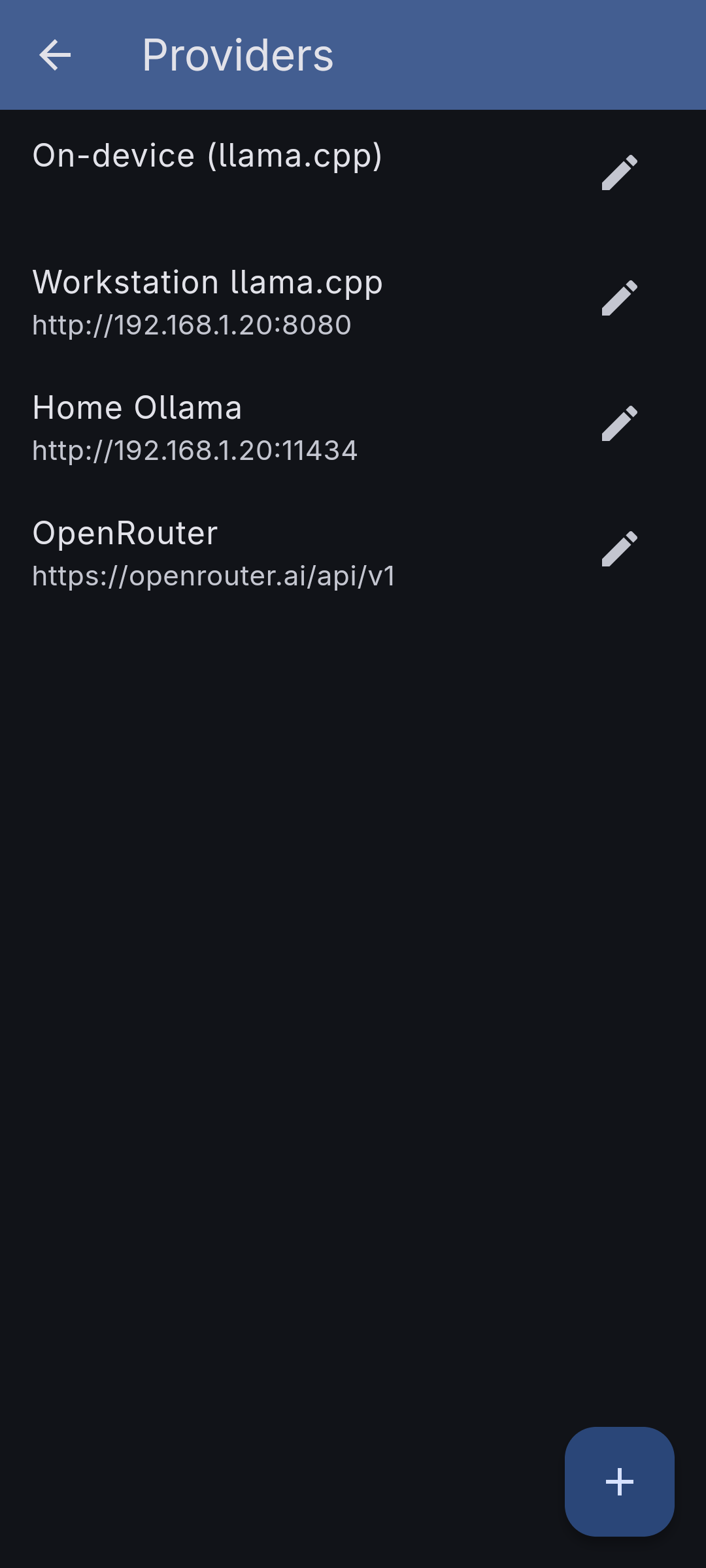
Add a provider on the Providers screen: name it, choose its kind, and give it what that kind needs — a base URL and key for the hosted APIs, an address for a local server, or a model folder for the embedded engine. When you create an agent you pick one of your providers and then a model it serves, so the same provider backs as many agents as you like.
The addresses and options you enter are saved in the app's local database on your device. An API key never lands there: it goes into your device's OS keystore, and the database only ever records that a key is set. It is read back out only into a form you opened — the provider's own, or a copy you explicitly asked to carry it — and never sent anywhere but the provider it belongs to. The embedded engine's model-folder location is also kept device-local and off the sync wire, since a path on one device means nothing on another.
Star the models you actually use
A hosted provider can serve hundreds of models, and you probably reach for a handful. Tap the star next to a model — on the provider's model list or in the picker you get when choosing an agent's model — and it moves to the top of both, above everything the search and filters leave in place. Each provider keeps its own starred list, and the list travels with the provider when your devices sync. Starring a model that a later refresh no longer returns costs you nothing: it simply stops appearing.
Copy a provider you already have
To set up a second provider much like one you configured, use Copy on the provider's page. The create form opens pre-filled with a duplicate — same kind, address, authentication settings, custom headers and starred models — with the name suffixed "(copy)". Nothing is written until you save, so you can point the copy at a different address before it exists. That makes the common variations cheap: the same account behind two base URLs, or one gateway configured twice with different headers.
The API key is never copied unless you say so. When the provider has a key on this device, Copy asks before it does anything: Copy with key starts the duplicate on the same key, Copy without key leaves the key field empty for you to fill in. Answering "without key" means the key isn't even read out of the keystore — and answering "with key" is worth a thought, because saving then puts a second copy of that secret under the new provider. Either way the field is yours to change before you save.
A copy you took without the key can't be saved until you give it one, the same as any provider you add from scratch — see A new provider needs its key up front.
The embedded engine offers no Copy. Its models folder and the models you assemble from it are tied to the provider they were set up under and stay on the device, so a duplicate would arrive with nothing in it.
A new provider needs its key up front
A provider set to authenticate with an API key can't be saved without one: Save stays disabled and the field says so. The alternative is on the same form — switch Authentication to No authentication for an endpoint that genuinely needs no credential. This applies to providers you are adding, whether from scratch or as a copy, because a brand-new provider has no key to fall back on anywhere: not in this device's keystore, and not on another device, since its key slot is as new as it is.
Editing a provider you already have works differently: there the key field may be empty simply because the key lives on another device and hasn't arrived yet, so you can still save other changes while you wait for it.
When a provider rejects the request
If listing a provider's models fails, the message names the HTTP status the provider answered with, so an outage reads differently from a refusal. A 401 or 403 — the provider turning the request down — is called out as an authentication problem and comes with the things that fix it: whether a key is stored on this device, a way to ask your other devices for it, and a link into the provider's form. If the provider is set to No authentication and the endpoint asks for a credential anyway, it says that too, since the fix is the authentication setting rather than a missing key.
What the app learns about a model
When you pick a model, the app tries to learn three things about it: its modalities (does it take images, not just text?), whether it supports tools, and whether it supports reasoning/thinking. How reliably it knows depends entirely on the provider kind, because each one exposes model information differently — that is the "Model capabilities" and "Reasoning detection" split in the table above, and the per-provider sections spell out each case.
Reasoning detection is a best guess on local backends
For Ollama, Llama.cpp, and the embedded engine, the app has only a limited ability to detect which reasoning/thinking settings a particular model file supports. There's no universal capability field for it, so the app leans on weak signals — a capability string, marker text inside the model's chat template, or a server launch flag — none of which is a reliable per-model answer.
The honest consequence: the app can report a model as not supporting thinking/reasoning even when the underlying weights actually do. When that happens the reasoning control is simply hidden for that model. When the app is merely unsure (rather than wrongly certain), it instead shows a manual opt-in checkbox, so you can turn reasoning on yourself if you know the model accepts it.
Only OpenRouter reports cost in money
Every provider reports token counts for a turn. Only OpenRouter also reports what the turn actually cost in money, because its API returns the spend directly; the app surfaces that as a "Cost" figure. For every other kind you see token usage but no monetary total.
Provider details
OpenAI-Like
Any endpoint that speaks the OpenAI chat-completions API — the catch-all, since most hosted providers and self-hosted gateways expose this shape. Defaults to OpenAI's own URL.
- Needs — a base URL and an API key. The app warns before saving that prompts will be shared with that third party.
- Model info — the endpoint returns a bare model list with no capability data at all, so the app can't tell a model's modalities, tools, or reasoning. You opt into reasoning by hand when you know the model accepts it.
- Cost — token usage only, no monetary total.
OpenRouter
One account that fans out to many upstream models; the model list comes from your account.
- Needs — an API key.
- Model info — OpenRouter ships a rich model catalog, so modalities, tool support, and reasoning are known up front and reliably.
- Cost — the only kind that reports what a turn cost in money, surfaced as a "Cost" figure (see Only OpenRouter reports cost in money).
Claude
Anthropic's API.
- Needs — an API key.
- Model info — a rich model catalog like OpenRouter's, so modalities, tool support, and reasoning are known up front and reliably.
- Cost — token usage only, no monetary total.
Ollama
Points at your Ollama server, on your machine or your network. No key, no per-token cost, and your prompts never leave your network.
- Needs — the server address.
- Model info — Ollama reports each model's capabilities cheaply (vision, tools, thinking), so it is reliable. Reasoning remains a best guess (see Reasoning detection is a best guess on local backends).
- Cost — token usage only, no monetary total.
Self-hosted server
The Llama.cpp server provider points at a llama.cpp server you host. No key, no per-token cost, and your prompts never leave your network.
- Needs — the server address.
- Model info — the app knows a model's capabilities only in the server's slow per-model mode; see the listing trade-off below.
- Cost — token usage only, no monetary total.
A llama.cpp server can describe its models two ways, and the app lets you choose which — it's a genuine speed-versus-detail trade-off:
- Fast (the default). The app just asks the server for its model list. This is quick, but the bare list carries almost no metadata: the app won't know a model's context length, tool support, modalities, or reasoning capability.
- Detailed (opt-in). The app additionally asks the server to describe each model. To answer, the server has to load every model into memory one at a time and re-read its GGUF metadata, which is how it recovers real capabilities — but it can be very slow when you have several models, and it runs them one after another because the server serves one at a time.
Turn the detailed mode on only when you want the app to know your models' capabilities and can wait for the server to load each one; leave it off for a snappy list when you already know what you're picking.
Embedded engine
The Local llama.cpp (embedded) provider is the inference engine built into the app. It runs a GGUF model in-process, on your device, with no server at all — no base URL, no API key, and no network. You choose the hardware backend it runs on (CPU, Vulkan, and so on). Its form has just where the files are and how to run them; for assembling models (base plus a multimodal projector), vision, and speculative decoding, see On-device models:
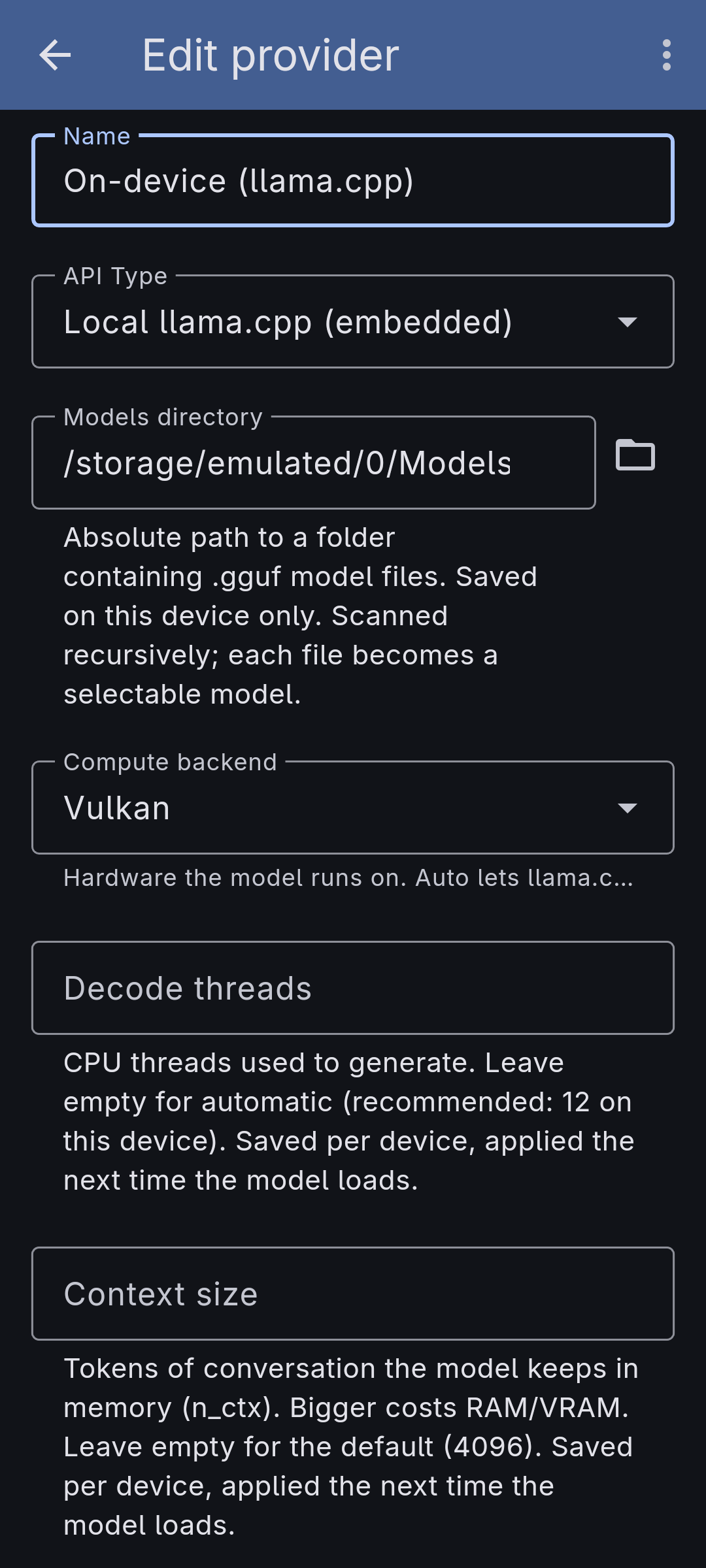
- Models directory — the folder holding your
.gguffiles. On desktop it's a path you browse to; on Android you grant a folder through the system file picker. The folder is scanned and each model file in it becomes selectable when you build an agent. This setting stays on the device only. - Compute backend — the hardware the model runs on. Auto lets the engine choose; you can also pin CPU or Vulkan (plus ROCm on Linux). It's saved per device and applied the next time a model loads.
- Decode threads — how many CPU threads to use while generating. Leave it empty for an automatic count.
- Model info — read straight off the GGUF file, so everything is inferred from the file's header rather than declared.
- Cost — token usage only, no monetary total.
Your model files can live anywhere — and stay shared
This is the part that sets BYLM apart from most apps built on llama.cpp. Those apps typically make you download a model into the app's own storage, where no other app can reach it — so a multi-gigabyte file you already have has to be copied in again, and it's locked to that one app.
BYLM doesn't. A GGUF file can sit anywhere on the device — downloaded by a browser or a separate model-manager app, parked in your Downloads folder, shared across several apps — and you simply point BYLM's models folder at it and pick it. Nothing is copied into app-private storage; the same file keeps serving every app that uses it.
This works because our llama.cpp libraries are patched to fit the Android security model. Instead of demanding a real filesystem path (which Android's scoped storage blocks for files outside app-private space), the engine loads the model from the file handle Android hands back through the folder grant you approved. That one change is what lets you keep your models where you want them, out in the open, instead of trapped inside the app.
What it doesn't do yet
Only the Android build is distributed today (on Google Play). The app also runs on Linux desktop, but there is no published desktop download yet.